

Capture Full-Page Screenshots on iPhone Effortlessly

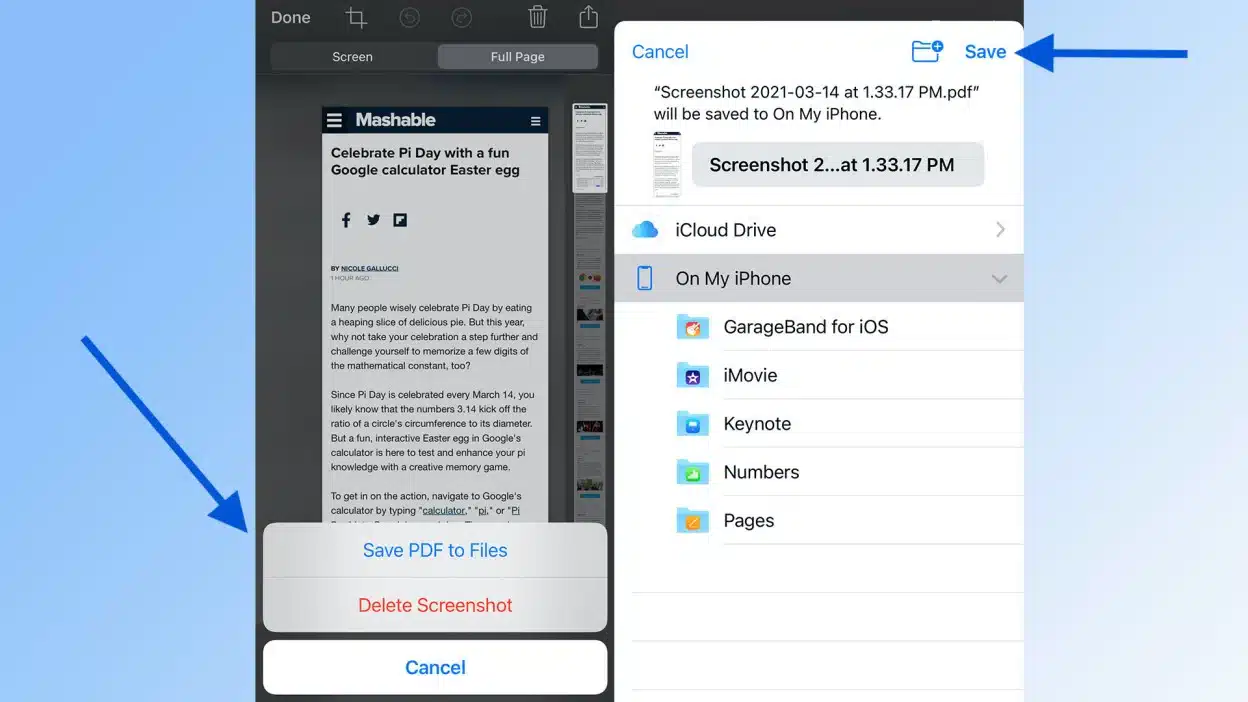
Capturing screenshots on an iPhone has become a straightforward task, but what if the content you need to save extends beyond a single screen? Long webpages, emails, and chat threads often require multiple screenshots, which can be cumbersome. Fortunately, iPhones now feature a scrolling screenshot option that allows users to capture an entire page in one go. This functionality, available in iOS, enables users to save their captures as either images or PDFs, depending on their system version. Here’s a guide on how to utilize this feature effectively.
Initiating the Screenshot Process
To begin, you need to take a standard screenshot. For iPhones equipped with Face ID, press the Side button and the Volume Up button simultaneously. If you have an iPhone with a Home button, press the Home button along with the Side or Top button at the same time. Once you capture the screenshot, a thumbnail preview will appear in the bottom-left corner of your screen. This preview is crucial as it allows you to access the editing features immediately.
Accessing the Screenshot Preview
After taking the screenshot, tap on the thumbnail before it disappears. This action will open the editing screen, where you can crop, annotate, or share the image. This step is essential for customizing your screenshot before saving it. You can add notes or highlight important sections, making it easier to reference later.
Capturing the Full Page
On the editing screen, you will notice two options at the top: “Screen” and “Full Page.” To capture the entire scrollable content, select “Full Page.” This feature is particularly useful for saving long webpages, emails, PDFs, or notes. Once you choose this option, a scroll bar will appear on the right side of the screen, allowing you to preview the full length of the page.
Saving Your Screenshot
After adjusting the scroll bar to your satisfaction, you can save or share your scrolling screenshot. For users on iOS 17 and later, the screenshot can be saved directly as an image in the Photos app. For those with older iOS versions, the screenshot will save as a PDF in the Files app. To finalize the process, tap “Done” and choose either “Save to Photos” or “Save to Files,” depending on your iOS version.
It’s important to note that scrolling screenshots work in various applications such as Safari, Notes, Mail, and PDFs, but may not function in third-party apps like Instagram or WhatsApp. By following these steps, you can efficiently capture lengthy content on your iPhone without missing any details.
Observer Voice is the one stop site for National, International news, Sports, Editor’s Choice, Art/culture contents, Quotes and much more. We also cover historical contents. Historical contents includes World History, Indian History, and what happened today. The website also covers Entertainment across the India and World.

