

Maximize Gmail Efficiency: Quick Bulk Email Deletion Tips

A cluttered Gmail inbox can quickly become overwhelming, making it difficult to find important messages. Fortunately, Gmail provides several efficient methods to help users delete emails in bulk, allowing for a cleaner and more organized inbox. By following a few simple steps, users can reclaim valuable storage space and streamline their email management.
Utilizing the Select All Feature
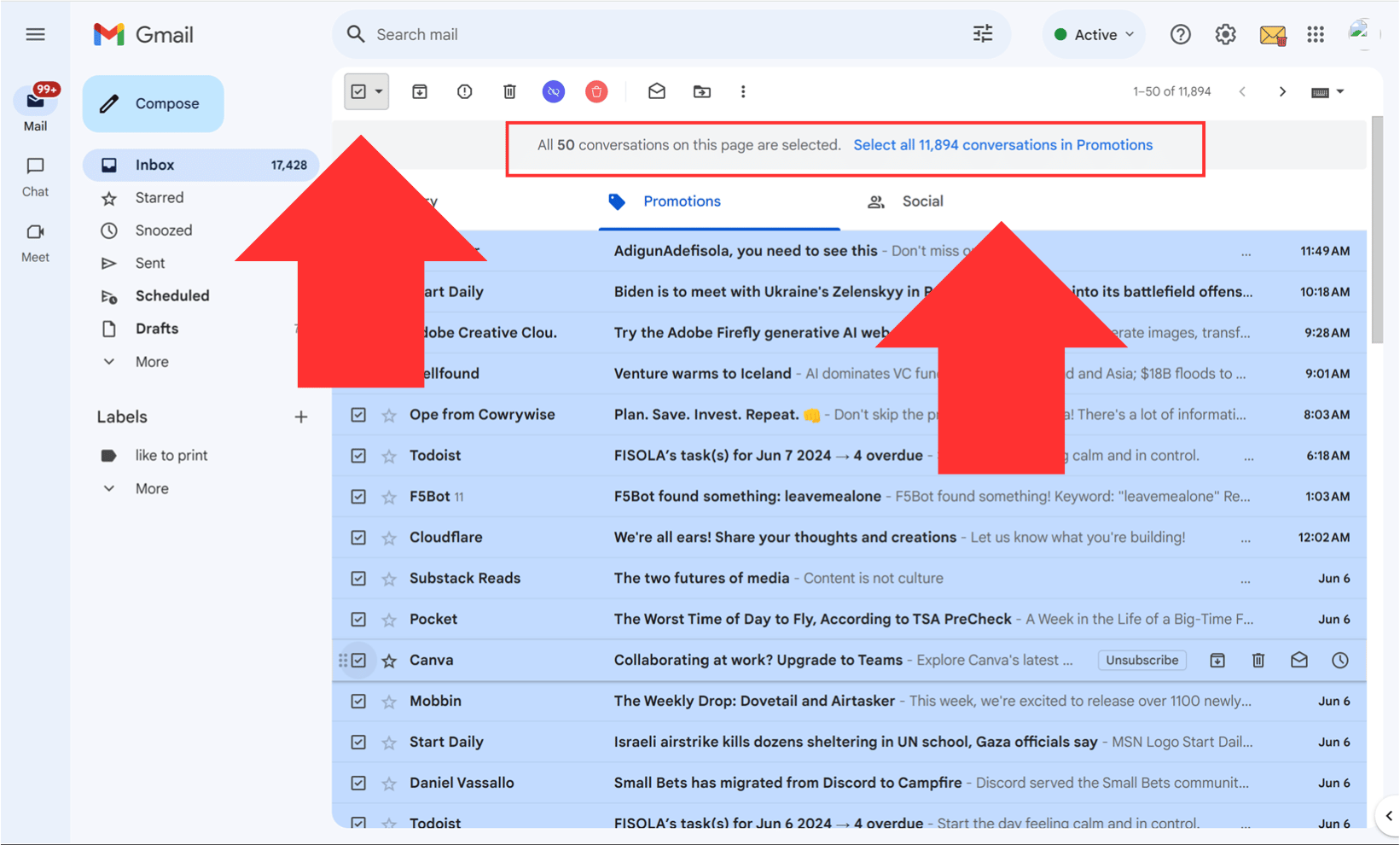
To initiate a thorough cleanup of your Gmail inbox, start by opening Gmail on a desktop browser. Click the checkbox located in the top-left corner to select all visible messages. Gmail will then present an option to select all conversations within the inbox. By clicking this option, users can easily tap the Bin icon to delete everything at once. This method is particularly effective for those looking to start fresh and eliminate a large volume of emails in one go.
Deleting Emails by Category
Gmail organizes emails into various tabs, such as Social and Promotions, which can help users manage their inbox more effectively. To delete emails by category, navigate to one of these tabs and select the “Select All” option. This allows users to delete all messages within that category simultaneously. This approach is especially useful for clearing out promotional or automated emails while preserving personal conversations, ensuring that important messages remain accessible.
Employing Search Filters for Efficient Cleanup
For users looking to target specific emails, Gmail’s search bar offers powerful filtering options. By entering specific commands, users can quickly locate and delete older or larger emails. For instance, typing “older_than:1y” will display emails older than one year, while “larger:10M” will help find emails that occupy significant storage space. Additionally, users can specify a sender by using “from:(sender)” to delete messages from a particular contact. Once the search results appear, selecting all conversations allows for bulk deletion, making the process swift and efficient.
Bulk Deletion on Mobile Devices
For those who prefer managing their emails on mobile devices, the Gmail app also supports bulk deletion. Users can long-press one email to activate multi-select mode, allowing them to tap on additional messages for deletion. This feature is particularly handy for quick cleanups when a computer is not available. By utilizing this method, users can maintain an organized inbox even while on the go.
Observer Voice is the one stop site for National, International news, Sports, Editor’s Choice, Art/culture contents, Quotes and much more. We also cover historical contents. Historical contents includes World History, Indian History, and what happened today. The website also covers Entertainment across the India and World.

