

Maximize iCloud Storage: A Step-by-Step Guide to Organizing Space Without Data Loss

iCloud is an essential service for Apple users, facilitating the storage and synchronization of data across devices. However, many users only recognize its significance when they encounter storage limitations, leading to issues such as halted photo uploads and failed backups. With only 5GB of free cloud space available, it can fill up quickly, especially for those utilizing iCloud Photos, Drive, and device backups. Understanding how to manage this storage effectively is crucial for maintaining access to important data across iPhones, iPads, Macs, and Vision Pro devices.
Understanding iCloud Storage vs. Device Storage
Device storage refers to the physical space available on your iPhone, iPad, or Mac, which is used to store apps, photos, videos, and system data locally. In contrast, iCloud storage is an online service linked to your Apple ID, allowing access to your data from any of your devices. It is important to note that clearing local storage does not impact iCloud storage, and deleting files from iCloud does not free up space on your device. Recognizing the distinction between these two types of storage can help users make informed decisions about what content to remove and where to manage their data effectively.
Steps to Free Up iCloud Storage
When iCloud storage reaches its limit, users may experience disruptions such as failed backups and unsynchronized apps. For those using iOS or iPadOS 17, a helpful feature called ‘Recommended for You’ can assist in identifying files that can be deleted, including duplicate media, old backups, and large items. To access this feature, users should navigate to Settings, tap on their name, and select iCloud. From there, they can review the suggested items and remove anything they no longer need. Even if certain items are not highlighted, users can manually delete files to create additional space.
Reducing Backup Size and Managing Apps
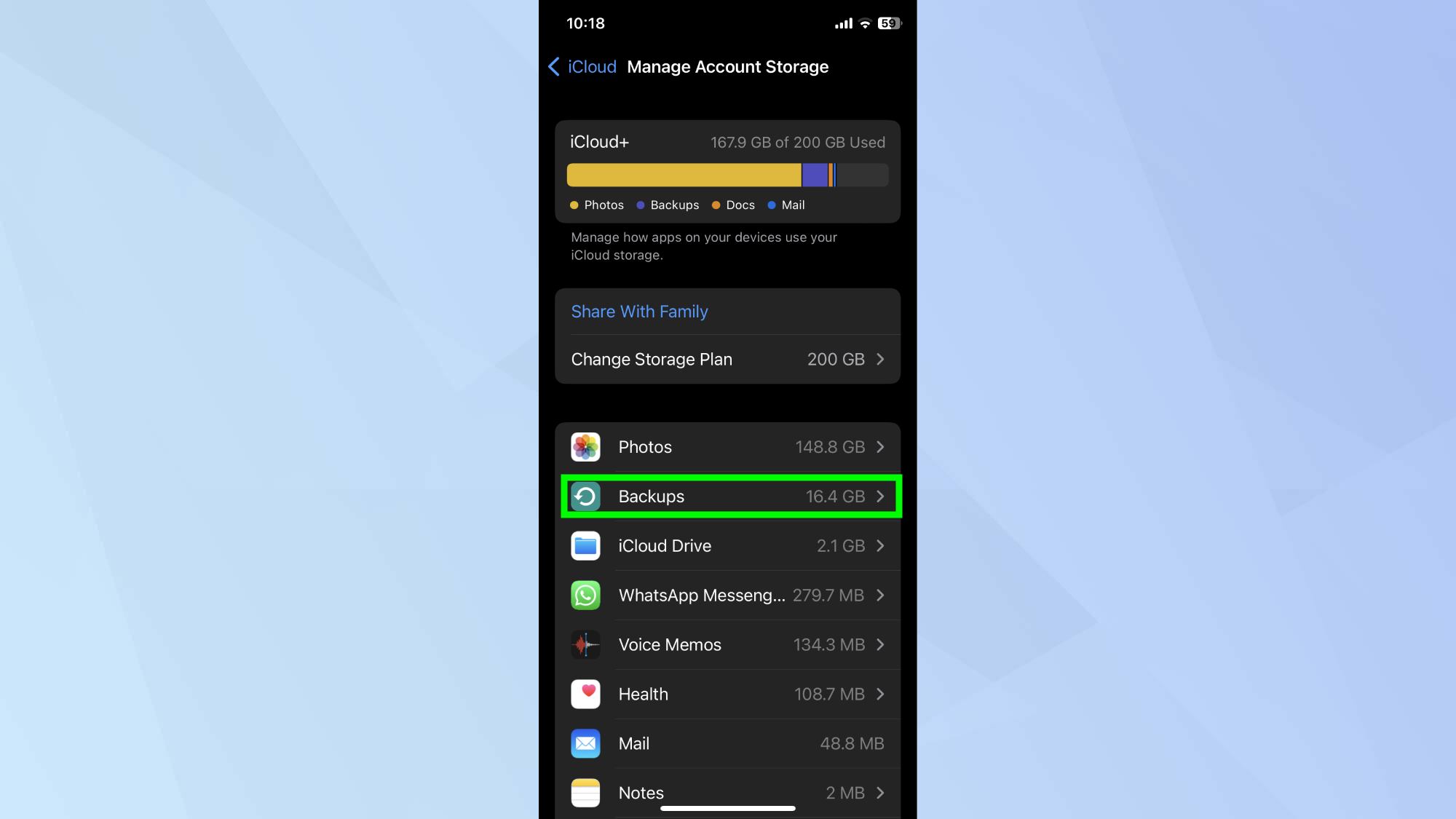
iCloud automatically backs up app data, messages, and settings, which can lead to unnecessary consumption of storage space, particularly from unused apps. To manage which apps are included in backups, users can go to Settings, tap on their name, and select iCloud. From there, they should navigate to Storage or Manage Account Storage, then Backups, and choose their device. Users can then turn off the backup option for apps they do not wish to include. Additionally, old backups can be deleted by selecting the backup and tapping on Turn Off and Delete, though this will disable iCloud Backup for that device until re-enabled.
Deleting Unwanted Files and Upgrading iCloud Storage
Photos and videos can take up significant space in iCloud, especially when using iCloud Photos to sync a full library across devices. Users can delete unwanted items directly from the Photos app on their iPhone, iPad, or Mac. It is also advisable to empty the Recently Deleted folder to free up space immediately. For documents stored in iCloud Drive, users can utilize the Files app on their devices or access iCloud.com to delete files. If the free 5GB of storage is insufficient, users can upgrade to iCloud+ for additional space and features, which can be done through the Settings menu under iCloud.
Observer Voice is the one stop site for National, International news, Sports, Editor’s Choice, Art/culture contents, Quotes and much more. We also cover historical contents. Historical contents includes World History, Indian History, and what happened today. The website also covers Entertainment across the India and World.
Follow Us on Twitter, Instagram, Facebook, & LinkedIn

